Issue 034
Topic: Scams and safety
You were taught not to click the link. This one didn't have one.
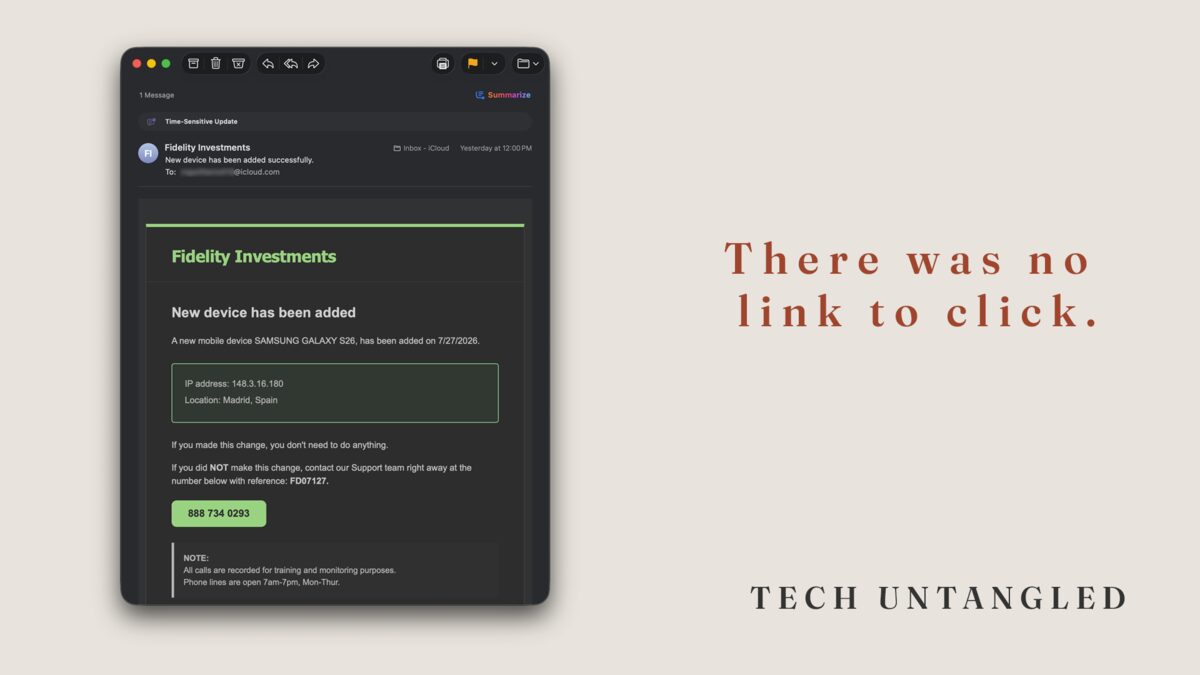
Last week an email landed in my personal inbox from Fidelity Investments. A new device had been added to my account. A Samsung Galaxy S26, added on July 27, from an IP address in Madrid, Spain.
I have never owned a Samsung Galaxy. I have never been to Madrid.
And still, for about a second and a half, my stomach dropped.
That is worth admitting out loud. I spend more time inside security settings in a week than most people do in a year, and the reflex fired before the thinking did. That second and a half is the entire product. Everything else in the email exists to fill it.
Then I looked at what the message actually wanted me to do, and it was not the thing I expected.
There was nothing to click
Every piece of security advice you have ever been handed has the same shape. Don't click the link. Hover over the link first. Check where the link really goes.
This email had no link.
No button to a fake login page. No attachment. No web address hiding behind friendly text. The only thing it asked of me was to call a phone number, printed in a green box, and give the agent a reference number when I got through.
That is not sloppiness. That is the design.
Security filters read incoming mail looking for something they can check. A suspicious web address. A malicious attachment. A domain somebody reported yesterday. A message with none of those is a message with nothing to scan. It is a logo, some text, and ten digits, and it sails straight into the inbox.
You sail through with it, because the reflex you were trained on never gets the chance to fire. Nobody warned you about the email that doesn't want you to click anything.
There is a name for it. Callback phishing. The name carries the whole idea. They are not trying to reach you. They are getting you to reach them.
And that flip changes everything about the call. When you dial the number, you are not someone being targeted anymore. You are a customer who called a support line for help. You arrived on your own, which means you arrive already trusting the person who answers. Nothing has to be sold to you at that point. You have walked across the fence and closed the gate behind you.
The name on a message is a label, not an address
The message said it was from Fidelity Investments. It said that because whoever sent it typed those words into the display name field.
Back in issue 032 I explained that caller ID is a label the phone network passes along in good faith, and that it can be filled in with anything. Email works exactly the same way. The name you see at the top of a message is a nickname attached to the sender's account. The actual address sits behind it, and most mail apps hide it by default to keep the screen tidy.
When I expanded the sender on this one, the address underneath began with info.mail.fidelity@ and then ended in a domain belonging to a small arts nonprofit with no connection to banking at all.
I am not going to print the rest of it, and the reason is part of the lesson. That organization almost certainly did not send me anything. Their mail was borrowed, the same way the spam callers in issue 032 borrow a phone number that happens to share your area code. Naming them here would only send you after the wrong party.
Look at where the word "fidelity" is sitting. It is in the front half, the part anyone can type. The part that actually determines who owns the mailbox is the piece after the @ sign, and that piece had nothing to do with the company whose name was on the message.
That is the single most useful check in your inbox, and it takes four seconds.
The details were the point
The email was full of specifics. An IP address. A city. A device model. A reference number to quote. A note that all calls are recorded for training and monitoring purposes. Business hours.
Specifics feel institutional. Real companies write like that, so a message that writes like that feels real. But detail is the cheapest thing in the world to invent, and precision is doing persuasion work here, not verification work. Nothing in that list can be checked from inside the message.
One of those details is the tell, and I only caught it on the second read. The phone lines were listed as open seven to seven, Monday through Thursday.
Sit with that outside the panic. A national brokerage that stops answering the phone for the week on Thursday afternoon.
You would never miss that on a calm morning. You are not meant to read it on a calm morning. You are meant to read it eleven seconds after learning that a stranger in Spain is holding your retirement account, and at that speed you are scanning for the number, not auditing the hours.
The rule that still works
Back in issue 005 I gave you one reflex for scams, and I want to sharpen it here, because this is exactly the case it was built for.
Never use the contact information inside the message that made you worried.
Not the link. Not the number. Not the address. If a message frightens you about an account, the message has disqualified itself as a source of information about that account.
Close it. Then reach the company the way you already know how. Open the app that is already on your phone. Type the web address yourself. Use the number printed on the back of your card or on a statement you were already keeping.
If something is genuinely wrong, it will be waiting for you when you arrive under your own power. Real problems do not evaporate because you took the long way in. And if the account is fine, you have learned that in under a minute at zero cost.
I have never once regretted hanging up and calling back on a number I chose.
How to see the real sender
The steps differ slightly by app, and the goal is the same everywhere: get the display name out of the way and read the address underneath.
On an iPhone or iPad, open the message and tap the sender's name at the top. The full address appears.
On a Mac, in Mail, click the sender's name in the header. A menu opens with the actual address at the top, which is exactly how I caught this one.
In Gmail, on the web or in the app, tap or click the small arrow next to the sender's name to expand the details and reveal the "from" address.
In Outlook, opening the sender's name or contact card shows the address behind it.
Whatever you are using, you are looking for the same thing. Read the part after the @ sign, and ask whether that domain belongs to the company whose name is on the message.
If it doesn't, you are done. Nothing else in the email needs your attention. You can report it by forwarding it to [email protected] and filing at ReportFraud.ftc.gov, then delete it.
One Simple Win
Open the most recent message in your inbox from a bank, a delivery service, or anything else with money attached to it. A real one. Expand the sender and read the actual address behind the display name.
Two minutes, on a message where nothing is at stake. Do it now and you will know exactly where to look on the morning when something is.