Issue 045
Topic: Device care
Your phone has two kinds of storage. They're both called storage.
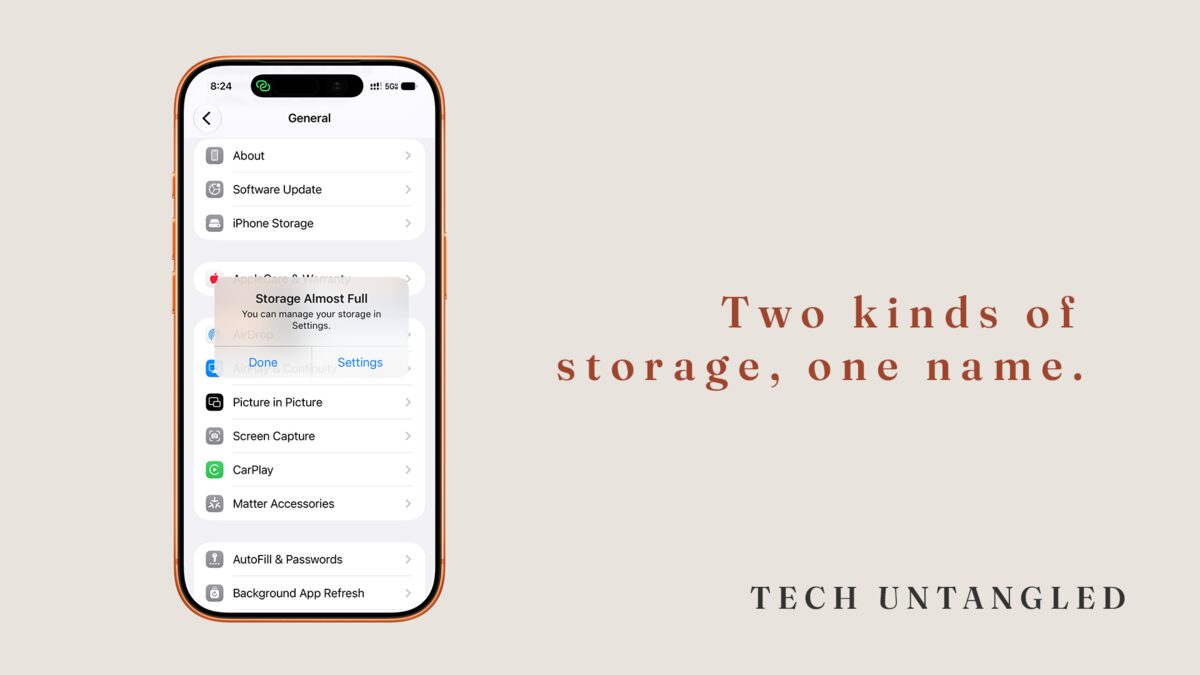
I hear some version of this a lot. Someone's phone keeps telling them the storage is full, so they do the sensible thing. They open Settings, go to General, then iPhone Storage, and the bar there shows plenty of room left. Now they're not sure what to believe.
I hear the reverse too. The phone itself is the one that's full, and they're looking in iCloud for the answer.
When someone tells me their storage is full, the first thing I ask is which one. Most of the time they had no idea there were two.
The phone and your account each have their own storage
The first is the storage inside the phone itself. Apple calls it device storage. It's the size you picked when you bought the phone, 128 or 256 gigabytes or whatever it was, and it never changes. Your apps live there, along with whatever photos and videos the phone is holding onto right now.
The second is space on Apple's or Google's computers, tied to your account instead of to the phone. That's cloud storage. On an iPhone it's iCloud, and Apple gives you 5 GB of it free. On an Android phone it's your Google account, which comes with 15 GB that Gmail, Google Drive and Google Photos all share. It follows you from one phone to the next, and it's where your backups and your photo library live when those are turned on.
Both of them show up on the screen as storage, and both send you a warning when they fill up. The warning doesn't always say which one it means, and the screen most people know how to find only shows one of them.
Why the fix never seems to work
The iPhone Storage screen only knows about the phone. It has no idea what's happening in iCloud. So when the warning is about iCloud, that screen shows a phone with room to spare, and it's telling the truth.
It works the same way in reverse. Buying more iCloud doesn't add a single gigabyte to the phone, so if the phone is what's full, paying for more cloud space won't make room for the next video. Deleting apps won't help a full iCloud either.
That's how people end up paying for storage they didn't need, or deleting things that were never the problem. Neither one is a dumb move, because they were fixing the only storage anybody had shown them.
What fills each one
When the phone itself is full, it's usually photos, videos and old message attachments. Back in issue 011 I walked through finding what's taking up the room, and all of that still applies.
When the cloud fills up, it's usually photos and backups. A backup of your phone lives in iCloud, and so can backups of phones you don't own anymore. If you traded in or gave away a phone in the last several months, its backup may still be sitting in your account. Apple keeps those for 180 days after a device stops backing up.
On a Google account, years of Gmail attachments count against the same 15 GB as your photos.
It helps to know what actually stops when the cloud is full. Apple says your phone stops backing up to iCloud, new photos stop uploading, and you can't send or receive email at an iCloud address. Google says new photos stop backing up and Gmail can be affected. Google also says that if an account stays over its limit for two years or longer, the content in it can be removed, and that it will contact you at least three months before that happens.
Before you start deleting photos
If iCloud Photos is turned on, your phone and iCloud share one photo library. Apple's help page says that when you delete a photo on one device, it's deleted everywhere you use iCloud Photos.
So deleting photos to make room on the phone deletes them from iCloud as well. It's easy to clear out the camera roll thinking the cloud still has a copy, and it doesn't, because it's the same library. Deleted photos sit in the Recently Deleted album for 30 days, which gives you time to change your mind.
Google Photos works the same way when backup is turned on. Delete a backed-up photo in the app and Google says it's removed from every device with backup on.
Where to check both
On an iPhone:
For the phone's own storage, open Settings, tap General, then iPhone Storage.
For iCloud, open Settings, tap your name at the top, then tap iCloud. The bar near the top shows how full it is. Tap Storage or Manage Account Storage to see what's using it. Backups are listed there by device name, and you can delete the backup for a phone you don't have anymore.
An iPad works the same way.
On an Android phone:
For the phone's own storage, open Settings and type "storage" into the search bar at the top. Where it lives depends on who made the phone.
For your Google storage, go to one.google.com in any web browser, sign in, and choose Storage. It shows how much Gmail, Drive and Photos are each using.
If you decide to pay for more space, that's a perfectly reasonable choice. Just make sure you're buying the kind that's full.
One Simple Win
Open both screens, one after the other. On an iPhone that's iPhone Storage under General, then iCloud under your name. On Android, it's Storage in Settings, then one.google.com in a browser.
Look at the two numbers and notice how close each one is to full. The next time a storage warning shows up, you'll already have a good idea which one it's talking about. It takes about two minutes.