Issue 002
Topic: Device care
Why Software Updates Matter More Than You Think
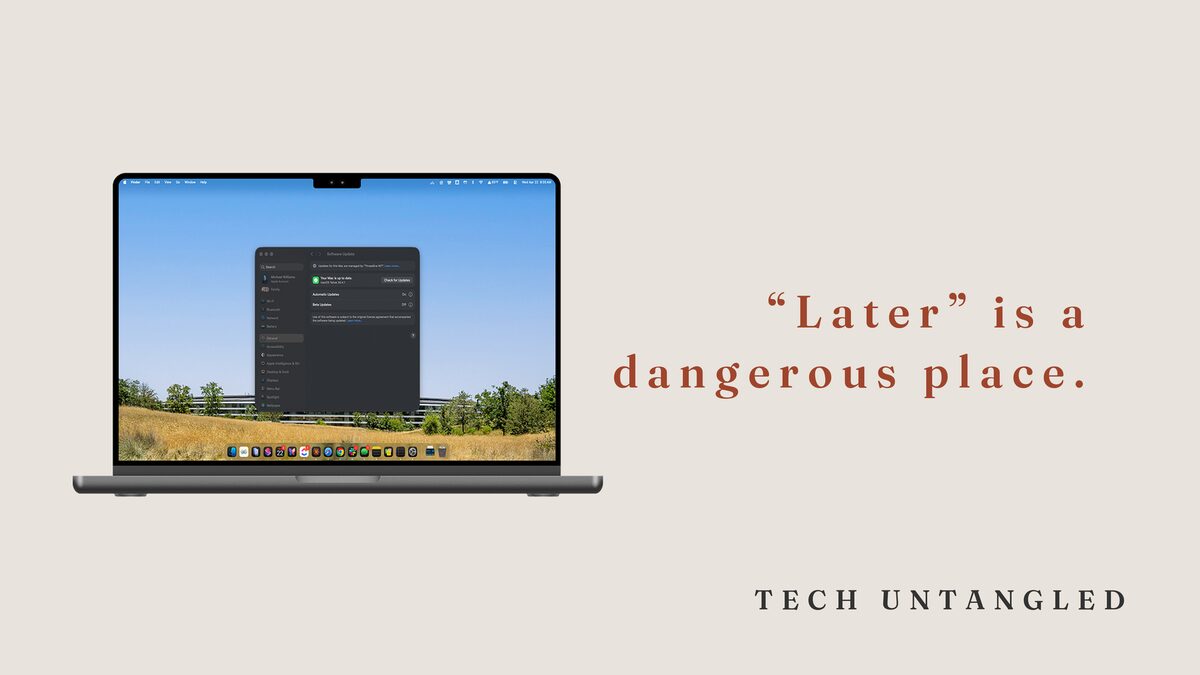
Most people assume their tech problems come from complicated causes. Slow phones, weird glitches, random bugs, battery drain. But the truth is much simpler: the biggest issues often come from something we ignore for far too long.
Software updates.
Not the fun kind with new features. The boring kind that pop up at inconvenient times. The ones we swipe away with a silent promise to “do it later.”
Here is the problem: “Later” is the most dangerous place to live.
When Apple, Microsoft, or Google release an update, it is usually because they patched a security hole that attackers already know about. The moment those details become public, criminals begin scanning the internet for devices that have not updated yet. They are not guessing. They are looking for a very specific weakness that outdated devices still have.
If your device is months or years behind, you are not “fine.”
You are a wide-open door.
And this isn’t just about security. Outdated devices break in subtle ways. Apps lag because they are optimized for newer versions. Features stop working. Compatibility fails. Your phone slows down even though nothing is “wrong.” You start feeling like technology is getting harder when really your device is running on old instructions.
The fix is not complicated.
It is not technical.
It does not require expertise.
It just requires one decision: stay current.
Because modern technology is designed with a simple assumption: you update. Once you fall off that path, everything gradually becomes harder, less stable, and less safe.
Here is Your One Simple Win for today.
Update every device you own: your phone, laptop, tablet, and watch.
If you have not updated this month, you are already behind.
Set devices to auto-update. Let them handle it while you sleep.
This single action eliminates most common vulnerabilities, improves performance, extends device life, and prevents the quiet, creeping problems that make people feel “bad at tech.”
How to Update Every Device You Own
Apple Devices
iPhone and iPad (iOS and iPadOS)
- Open Settings.
- Tap General.
- Tap Software Update.
- Install Now.
- Turn on Automatic Updates.
Mac (macOS)
- Click the Apple menu.
- Open System Settings.
- Go to General.
- Select Software Update.
- Install all updates and enable Automatic Updates.
Apple Watch (watchOS)
- Open the Watch app on your iPhone.
- Tap General.
- Tap Software Update.
- Install the update and turn on Automatic Updates.
Other Devices
Windows PC
(Install Windows Updates)
- Open Settings.
- Select Windows Update.
- Click Check for updates.
- Install all available updates.
Android Phones or Tablets
(Check & Update Your Android Version)
- Open Settings.
- Tap System.
- Tap System update or Software update.
- Install the update.
Chromebook
(Update your Chromebook's operating system)
- Click the clock in the bottom right.
- Open Settings.
- Select About ChromeOS.
- Click Check for updates.
- Restart to finish.
Router or WiFi System
(How to Update Router Firmware)
- Open your router’s app or admin page.
- Look for Firmware Update.
- Install the update if available.
Smart TVs and Streaming Devices
- Open Settings.
- Look for System or About.
- Select Software Update.
- Install any available update.
Official Update Guides for the Most Common Smart TVs:
- Samsung Smart TV: How to Update
- LG webOS TV: How to Update
- Sony Google TV: How to Update
- Vizio SmartCast: How to Update
- Roku TV: How to Update