Issue 042
Topic: Passwords and sign-in
Your saved passwords are a list of every account you ever opened.
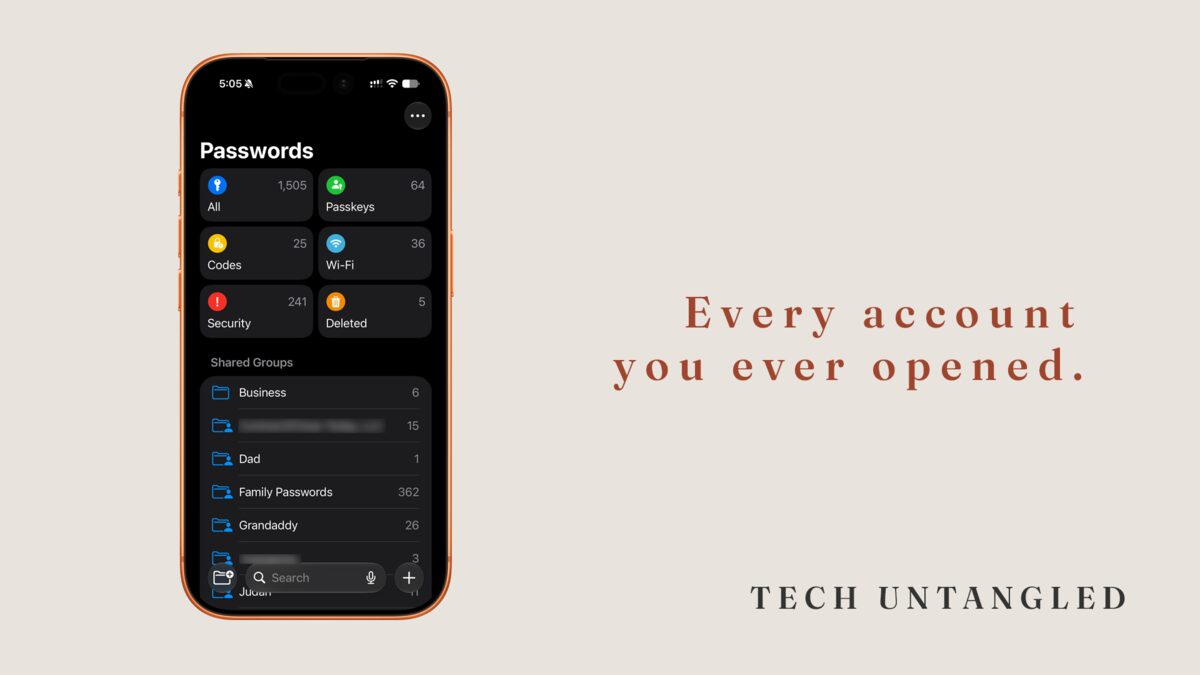
This afternoon I opened the Passwords app on my phone and tapped All. The number at the top said 1,505 items.
Then I changed the sort to Date Created, oldest first, and it took me back to 2015. Pinterest. CNET. Thumbtack. LawDepot. A few more after those, and several of them had a small exclamation mark sitting next to the name.
I'm in that app every day. I move fast, and I almost never slow down long enough to actually change a password, even the ones it has flagged. I have probably deleted a few entries over the years just to make the list shorter, too. I would guess a lot of you have done the same, and it felt like cleaning up when you did it.
Every line on that list is an account that is still open
Every time a website or an app asked you to make an account, and your phone offered to save the password, it wrote one line. You tapped Save and went back to whatever you were doing. Nobody ever described that as keeping records.
But that is what it was doing, for ten years in my case. The list on your phone is the only complete record you have of every account you have ever opened, because it was there every time you signed up for something, including all the times you were in a hurry and not thinking about it at all.
Back in issue 003 I told you to stop trying to remember passwords and let your phone do it for you. I still mean that. What I did not mention is what that list turns into after a decade of tapping Save.
Deleting the password doesn't close the account
When you delete an entry from your saved passwords, you are deleting your phone's copy of the key. The company at the other end never hears about it. The account stays exactly where it was, holding whatever you gave it when you signed up. Your name and email address, sometimes a home address, sometimes a card number.
And the line you deleted was usually the only place you had the username and password you would need to sign in and close that account properly. So the move that feels like tidying up leaves the account open and takes away your only note that it exists.
Apple does give you a little room here. Passwords you delete go to a section called Deleted inside the Passwords app and stay there for 30 days before they are gone for good. If you cleaned out some old entries recently, look there before anything else.
An account doesn't expire because you stopped visiting
An account you made in 2015 has no idea you stopped using it. It sits on that company's servers under your email address until somebody closes it, and the only person likely to do that is you.
In the meantime the company might get bought, change its privacy policy, or lose a copy of its customer list in a data breach. The accounts nobody has signed into for years are on that list the same as everybody else's.
That is what the little exclamation marks are about. The Passwords app watches for three things: a password you have used on more than one site, a password that is easy to guess, and a password that has shown up in a known data leak. Tap the entry and it tells you which one it found. Several of my 2015 entries carry one.
Close it first, delete it last
The order is the whole trick here.
Sign in to the old account using the password your phone saved. Look in the account settings, sometimes labeled Profile or Privacy, for an option to close or delete the account. Many sites have one. Some make you email their support address instead, and a few bury it well enough that you have to search the site's help pages for the words "delete account."
When the site confirms the account is closed, then delete the entry from your saved passwords. Not before.
If the site makes you wait, or you cannot find the option, leave the entry where it is. A saved password you are not using costs you nothing sitting in that list, and it is your record that the account is still out there.
You do not have to get through all of it. One a day is plenty. Start with the oldest ones, because that is where the accounts you have forgotten about tend to collect.
Where your list lives
On an iPhone, iPad or Mac, open the Passwords app and tap All. The count of everything saved is at the top. Use the sort option to choose Date Created, then Oldest First.
On Android, your saved passwords live in Google Password Manager. In Chrome, tap the three-dot menu, then Settings, then Google Password Manager. You can also open passwords.google.com on any computer. Google's list runs by site name rather than by date, so start at the top and read down. Its Checkup looks for the same three problems Apple's app does.
On a Windows computer, your passwords live in whichever browser you use. In Chrome it is the same Google Password Manager. In Edge, look in the browser's settings for Passwords.
One Simple Win
Open your saved passwords, sort them oldest first if your phone lets you, and read the first ten.
Pick one account you do not use anymore. Sign in, find the option to close it, and close it. Then, and only then, delete the saved password.
That's one account, about five minutes. Then do one more tomorrow. I'm never going to sit down and fix all 1,505 of mine in one weekend, and you don't need to either.