Issue 023
Topic: Everyday tech
Your screen is still set for noon. Even at midnight.
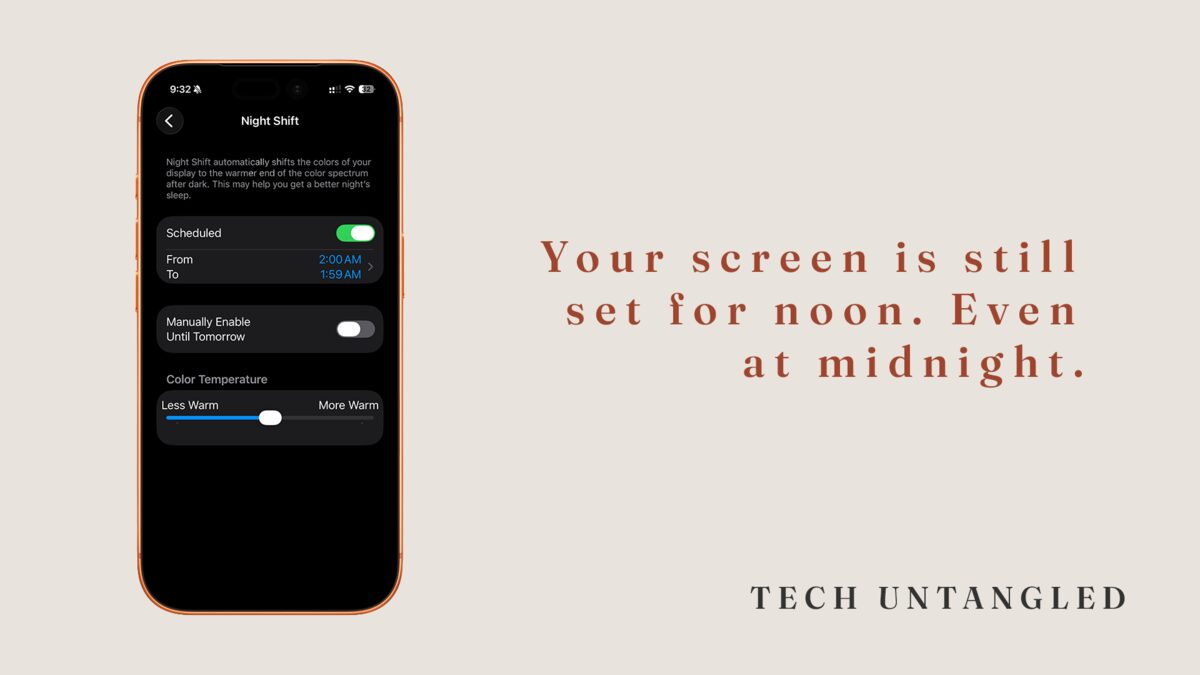
A few weeks ago someone handed me their phone to look at something and the screen looked like a lamp. Warm, almost orange. They laughed and said they had “that yellow setting” turned on.
Night Shift. They’d flipped it on manually once and never looked into it further. Didn’t know you could schedule it. Didn’t know why it existed. Just knew it felt easier on the eyes at night.
That’s about as far as it goes for a lot of people with this one.
What Night Shift Actually Does
Your phone’s screen produces light across the visible spectrum, but it leans heavily on blue wavelengths. That’s partly a design choice. Blue light makes screens look crisp and bright in daylight. The problem is your brain uses the same light cues it always has to decide whether to be alert or wind down. Bright blue light at 10 PM reads like noon sun. Your body responds accordingly.
Night Shift shifts the color temperature of your display toward warmer tones during the hours you set. Yellows and oranges instead of blues. The content on screen looks the same. The colors run a little warmer. Your brain gets a softer signal.
It won’t fix a bad sleep schedule on its own. But it removes one thing that was actively working against you.
Setting It Up on iPhone
Settings > Display & Brightness > Night Shift.
You have two options. Manual turns it on until the next sunrise, which works fine if you remember. Scheduled is better. Set a start time around sunset or whenever you wind down. Set an end time in the morning. Once it’s scheduled, you don’t have to think about it again.
The intensity slider controls how warm the shift goes. All the way warm is noticeably orange. I keep mine in the middle. Enough to matter, not so much that it’s distracting.
I’ve seen phones set to run Night Shift from 2 AM to 1:59 AM. One minute off, in the middle of the night. Essentially always on. If yours is set that way, leave it. The daytime warmth is subtle enough that it rarely bothers anyone. The benefit toward sleep is real.
On Android
The feature is there too, under different names depending on who made your phone.
Stock Android (Pixel and similar): Night Light. Settings > Display > Night Light. Same idea. Schedule it, set intensity, done.
Samsung: Eye Comfort Shield. Settings > Display > Eye Comfort Shield. Samsung’s version can adjust automatically based on time of day without you picking specific hours, which is a nice option if you’d rather not think about it.
Other Android phones use similar names. If you can’t find it, search “blue light” or “display” in your Settings search bar. It’s on almost every phone made in the last eight years.
One More Thing Worth Knowing
Night Shift reduces blue light but doesn’t eliminate it. If sleep is something you’re actively working on, brightness matters too. A warm but blinding screen is still a lot of stimulation. Dropping brightness when Night Shift kicks in is worth doing.
Dark Mode is a separate thing. It reduces overall screen luminance by flipping white backgrounds to black. Different mechanism. Both help. They’re not the same, and having both on a schedule is reasonable if you’re trying to stack the deck in your favor.
One Simple Win
Open Settings, find Night Shift (iPhone) or Night Light / Eye Comfort Shield (Android), and turn on a schedule. Set the start time an hour or so before you typically go to bed. Intensity somewhere in the middle. Done. You’ll barely notice it’s running, which is exactly the point.