Issue 050
Topic: Passwords and sign-in
Your guests shouldn't have to read a sticker to get online.
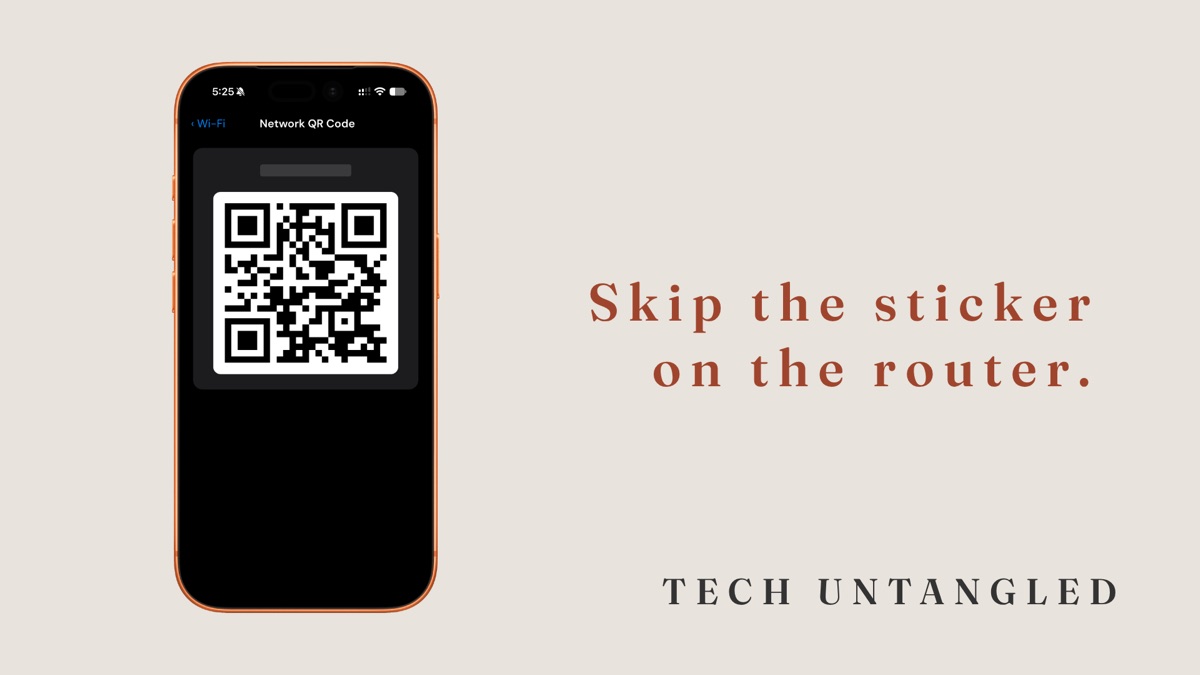
If you're hosting this week, somebody is going to walk in, set down a dish and ask for the Wi-Fi password. Then the hunt starts. Somebody remembers it's on a sticker on the back of the router, so you end up down on the floor behind the TV stand reading twenty letters and numbers out loud, and the other person types it with one thumb and gets a zero and a capital O mixed up.
I've been the one on the floor behind the TV more times than I'd like to admit. Your phone has been able to do this for you for years, and a lot of people were never told.
Your phone already knows the password
Every phone, tablet or laptop that has joined your Wi-Fi saved the password the first time you typed it in. That's why it reconnects on its own when you walk in the door.
The password on the sticker is long and random on purpose. Router makers print a different one on every box so the neighbors can't guess it, which is good for security and terrible for reading out loud across a crowded kitchen.
Since it's saved, your phone can hand it to someone else's phone directly. Nobody has to read it, and nobody has to type it. There are two ways to do it. One is a card that pops up between two iPhones. The other is a square code that works with any phone.
It works in the other direction too. The next time you're the guest, ask whoever's hosting to pull up the code on their phone instead of hunting for the sticker.
iPhone to iPhone, the card does it for you
If your guest has an iPhone, iPad or Mac, here's how it goes. Your iPhone has to be unlocked and already connected to your Wi-Fi. Your guest opens Settings, taps Wi-Fi and taps the name of your network, the same as if they were going to type the password.
Hold your phone close to theirs. A card titled Share Your Wi-Fi slides up on your screen. Tap Share Password, then Done, and their phone joins on its own.
There's one catch that trips people up. Apple says each person needs the other's Apple Account email address or phone number saved in Contacts. Family usually already is. A neighbor you've never texted may not be. If the card never shows up, that's usually why, and the code in the next section works no matter what.
For everyone else, a code they can scan
A Wi-Fi QR code is a small square pattern that holds your network's name and password. Your guest points their phone's camera at it, taps the message that pops up, and they're on. It works between iPhones and Android phones in either direction.
If the camera doesn't react, have them hold it still a few inches away for a second or two. Some older Android phones need Google Lens, which is usually a button inside the camera app.
On an iPhone, open the Passwords app, tap Wi-Fi, tap your network, then tap Show Network QR Code. The Passwords app came with iOS 18, so an iPhone that's up to date has it.
On an Android phone, open Settings, go to your Wi-Fi settings and tap the gear next to your network. Look for Share or QR code. On a Pixel it's under Network and internet, then Internet. On a Samsung it's under Connections, then Wi-Fi. Menus vary a little by brand, but the button is always on your network's own page.
Put it where guests can find it
You can take a screenshot of that code and print it. A copy on the fridge or by the coffee maker means nobody has to ask at all. It also comes in handy the next time a grandkid's tablet or a new streaming box needs to get online.
Keep in mind that anyone who scans it is on your network, so it belongs inside the house, not taped to the front window.
If your router or your internet company's app offers a guest network, that's the better code to print. Guests get internet, and they stay off the network your own computers and phones are on.
If you need to see the password itself
Sometimes you do need the actual letters, for a TV or a printer that can't scan anything.
On an iPhone, open Settings, tap Wi-Fi, tap the small i next to your network, then tap Password. Face ID or your passcode shows it. On a Mac, the Passwords app has the same Wi-Fi section, and you can see the password there.
On a Pixel, the password is printed right under the QR code. Samsung phones show only the code, so on a Samsung, the sticker on the router is still your best bet for the letters themselves.
One Simple Win
Before anyone arrives, pull up your network's QR code, on an iPhone in the Passwords app or on Android from your network's Wi-Fi settings, and take a screenshot. Open it in Photos and tap the heart so it lands in Favorites.
The next time someone asks for the Wi-Fi password, you hold up your phone. It takes about two minutes.