Issue 046
Topic: Device care
Every USB-C cable in your drawer fits. They don't all do the same job.
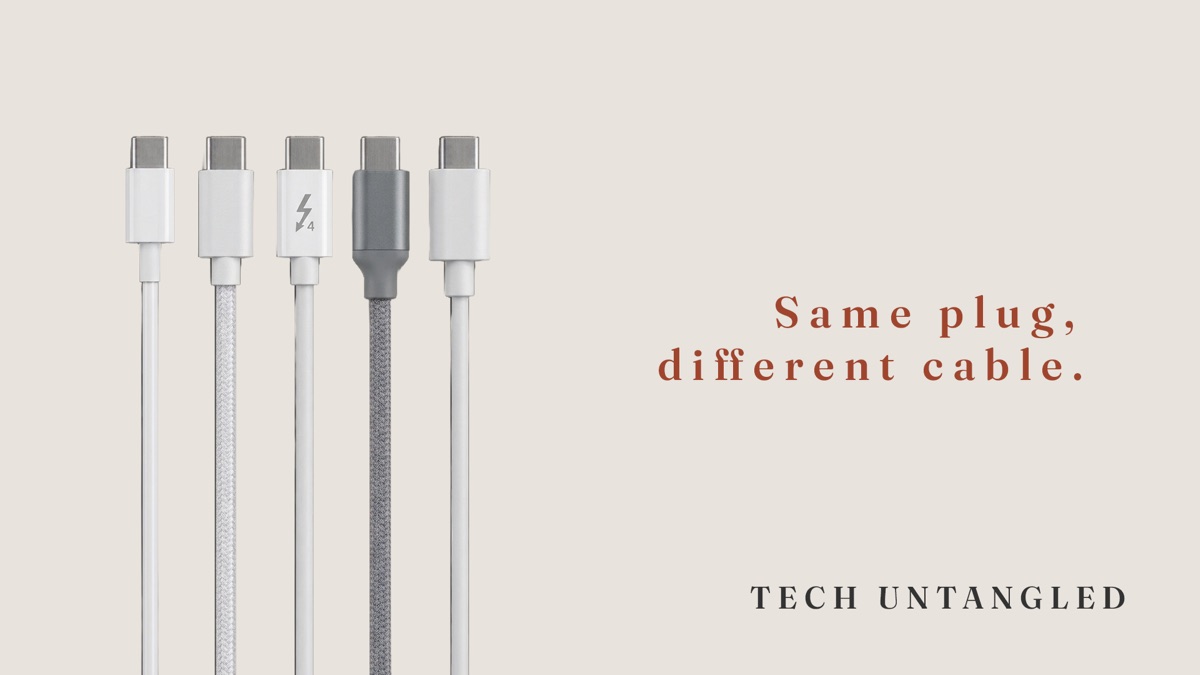
People in my life hand me their old devices pretty often, so they get recycled or rehomed instead of going to a landfill. The cables usually come along with them.
The USB-C ones are the hardest to sort. A cable from a phone box and a cable from a laptop box can be the same white and the same length, with the same plug on both ends, and still be built for very different jobs. A lot of the time there's no way to tell by looking.
If your laptop has ever charged slowly for no reason you could find, or copying files to a drive took far longer than it should have, the cable is worth a second look. It's usually whichever one was closest.
The plug only promises that it fits
USB-C is the name of the plug, the small oval one that goes in either way up. Phones, tablets, laptops and plenty of other things use it now. iPhones switched to it starting with the iPhone 15.
The plug is a standard. The wire behind it isn't. Two things change from one cable to the next, and neither one shows on the outside.
The first is power. Every standard USB-C cable is built to carry up to 60 watts. A cable made to carry more, 100 or 240 watts, has a tiny chip inside that tells the charger it's safe to send more. If that chip isn't there, the charger stays at 60 watts or below, however big the charger is.
The second is data, meaning how fast the cable can move files. The slowest USB-C cables move data at a speed USB first reached around the year 2000. The fastest ones are many times quicker, and on the outside you can't see the difference.
The cable in the box is built for charging
Apple's own support page says the USB-C cable that comes with an iPhone supports charging and USB 2 speeds. USB 2 is the slow one.
For charging a phone, that's fine. For copying a few hours of video off the phone and onto a computer, it's the long way around. Apple's Pro iPhones, starting with the iPhone 15 Pro, can move files about twenty times faster than USB 2, but only with a different cable rated for USB 3 speeds, bought separately. It looks just like the one in the box.
Nothing is wrong with the cable that came in the box. It does exactly what it was made to do. It just ends up in a drawer with a dozen others, and one day it gets picked up for a job it was never made for.
When the cable matters and when it doesn't
Charging a phone. The cable is rarely the reason a phone charges slowly. Phones generally charge well under 60 watts, so any standard cable in good shape will do. Look at the charger brick first. The wattage is printed on it in very small letters. For an iPhone, Apple says a 20 watt or higher USB-C adapter charges faster.
Charging a laptop. This is where the cable can make a real difference. A laptop that came with a 96 or 140 watt charger gets held to 60 watts by a cable that can't carry more. It still charges, just more slowly, and if you're working hard on it at the same time it may barely gain any ground.
Moving files. Backing up a phone to a computer or copying photos to an external drive goes at the speed of the slowest part, and that's often the cable. Usually nothing on the screen tells you the cable is the reason it's slow.
Plugging into a TV or monitor. The slowest cables can't carry a picture at all. If a laptop or phone won't show up on a screen through USB-C, try a different cable before you decide the screen or the port is the problem.
How to tell what you've got
Once a cable is out of its box, it's often hard to know. There are two markings worth looking for.
The first is a small lightning bolt printed on the plug itself, usually with a number next to it. That bolt has nothing to do with Apple's Lightning cable, the older iPhone plug. It means the cable is a Thunderbolt cable, one of the most capable kinds of USB-C cable you can buy.
The number tells you which generation it is. A 4 is a Thunderbolt 4 cable. Those move data at 40Gbps, which is about eighty times faster than USB 2, and they're typically rated to charge at up to 100 watts. A 3 is the generation before it, and it still works in the same ports. A 5 is the newest. A bolt with no number is usually a Thunderbolt 3.
A Thunderbolt cable works anywhere a regular USB-C cable works, so it'll charge a phone just fine. It's just more cable than a phone needs. If you have one, it belongs with a laptop, a monitor or a docking station, and it's the last one you want lost in the drawer. Some laptops, including many Macs, print the same bolt next to the ports that can use it.
The second marking is on the packaging. If the box carries the official USB logo, it shows the wattage, either 60W or 240W, and sometimes a speed like 40Gbps. Laptop cables also tend to be a little thicker than phone cables, which is a hint, though not a promise.
The method that actually works is the boring one. Keep each cable with the thing it came with, and mark the ones that matter.
If you're buying a new cable for charging, one rated for 240 watts from a brand you recognize will handle the charging for just about anything with a USB-C port. If you also need it to move files fast, check the speed on the package too, because a 240 watt cable can still be a slow one for data.
On an iPhone, the cable in the box is fine for charging. If you want faster charging, the brick is the piece to upgrade, 20 watts or higher. If you have a Pro model and move a lot of video to a computer, a USB 3 cable rated for 10Gbps is the one that makes a difference.
On an Android phone, the same rules apply. Check the brick's wattage, and if you want to know the fastest your phone can charge, the maker's website lists it.
On a laptop, Mac or Windows, keep the cable that came with it next to its charger, and don't let it wander off into the general pile.
One Simple Win
Find the cable that came with your laptop. If it's still plugged into the laptop's charger, that's probably the one. Wrap a piece of tape around it near one end and write "laptop" on it, or put a colored twist tie on it, anything you'll recognize. If any cable in the drawer has a lightning bolt on the plug, mark that one too.
That cable now has a job, and the next time somebody grabs a cable out of the drawer, it won't be that one. It takes about two minutes.